Write and organize Rules
A useful Rule has a name you recognize, a clear reason to exist and a response you can test. Start with a small moment, such as "The guard recognizes the player," before building a whole quest around it.
Open the Rule Editor
Choose Window > Game Creator > Story Engine > Rule Editor.
The left side lists Rules in loaded scenes and the current prefab stage. Select a card to edit the complete Rule on the right. This does not change your current Hierarchy or Inspector selection.
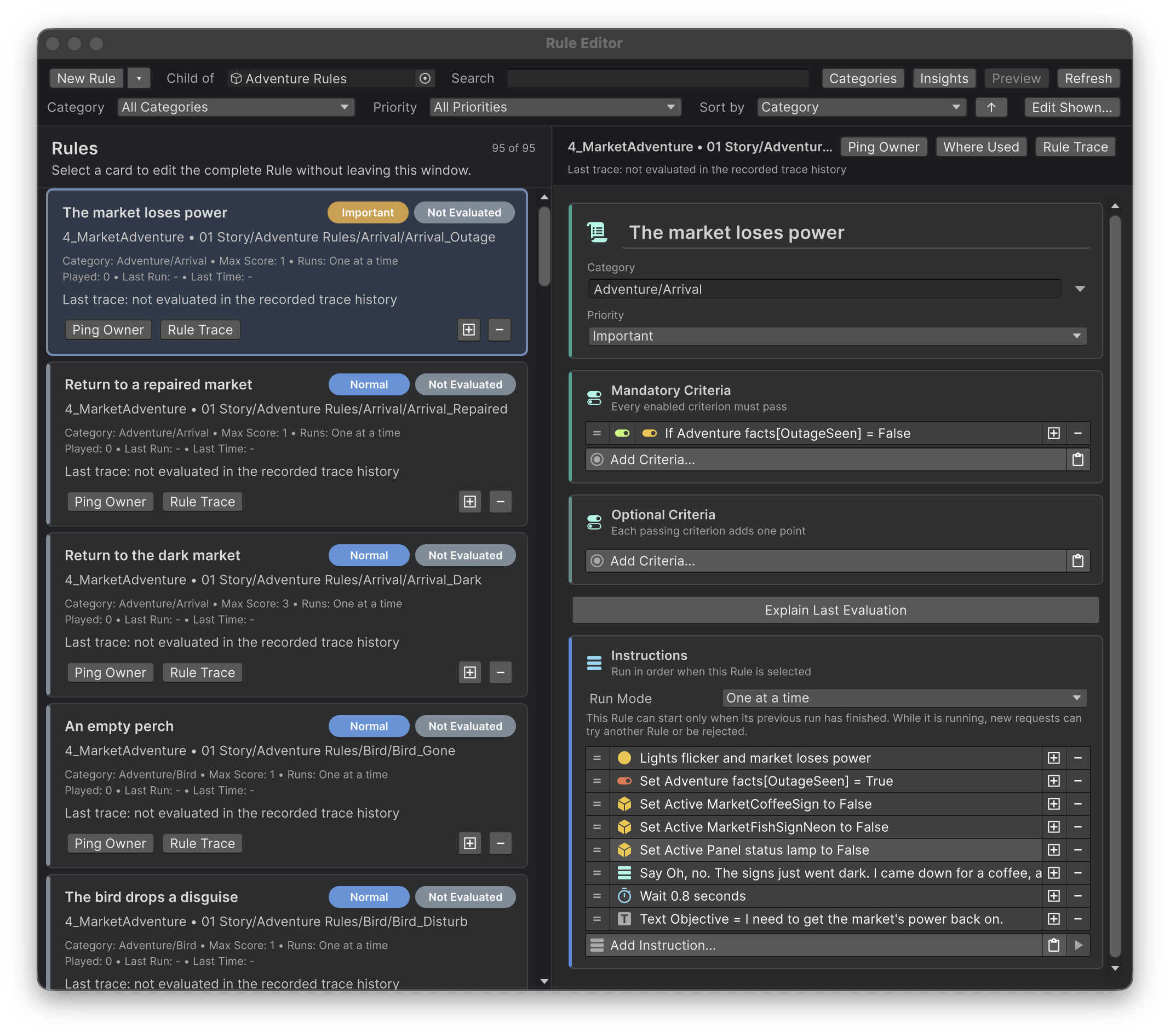
Create a Rule
The New Rule button uses your current Unity selection. Its toolbar hint tells you where the Rule will go.
| Current context | What New Rule does |
|---|---|
| One editable scene GameObject selected | Adds a Rule to that object |
| The scene's Rules organizer selected | Creates a child GameObject with a Rule |
| No scene GameObject selected | Creates a child under a scene-level Rules organizer |
| Several GameObjects selected | Opens a menu so you can choose a target |
Use the button's dropdown when you want a different destination. You can also add Game Creator > Story Engine > Rule through a GameObject's Inspector.
Name the moment
Prefer The seller notices the returned tools to Rule 07. A readable name helps you find the Rule, understand its history and recognize it in a trace.
Edit the title in the Rule header. The Rule's history reference has its own stable identity, so changing its label does not create a new story-history entry.
Fill in the Rule
| Field | What to decide |
|---|---|
| Category | Which kind of request should consider this Rule? For example, Guard/Greeting |
| Priority | Does this moment need to take precedence? Start with Normal |
| Mandatory Criteria | What must be true for the response to make sense? |
| Optional Criteria | Which extra details make this response more suitable? |
| Instructions | What should happen when the Rule is selected? |
| Run Mode | May another copy of this response start while it is already running? |
Set the right conditions before adding a long response. A short visible action is easier to test.
Find and review content
Search by the Rule's title and use category or priority filters to narrow the list. Sort by title, owner, category, priority, maximum score or last run.
Ping Owner reveals the owning GameObject. Where Used helps you review references before changing or deleting content. The editor also checks references when deleting a Rule.
Edit Shown lets you work with the currently shown set. Check your search and filters first so you know which Rules are in that set.
Keep your work
Save the scene or prefab that owns the Rule. The Rule Editor edits that content; it is not a separate document with its own save file. Normal Unity Undo and prefab workflows still matter.
Try changes in Play Mode, then leave Play Mode before making the edits you want to keep. Treat the Play Mode test as a rehearsal, just as you would for other Unity content.